
How to reduce 'Where is my order?' tickets on Shopify: a practical playbook
Fewer WISMO tickets come from better shipping emails, a findable order status page, honest delivery dates, and an assistant that reads Shopify orders.
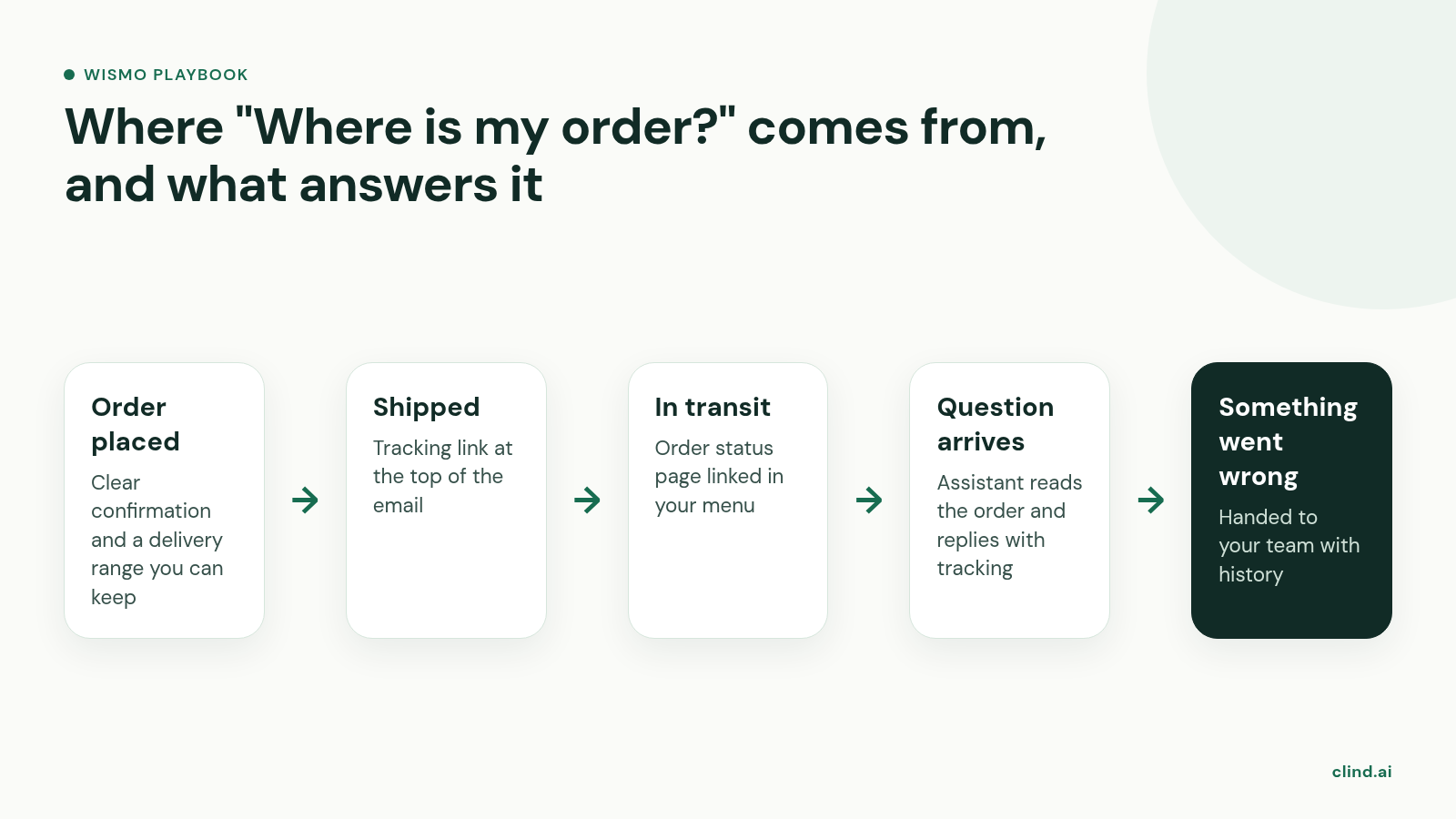
To reduce "Where is my order?" tickets on Shopify, start with clear shipping emails, an order status page shoppers can find, and delivery dates you can keep. Answer the rest with a support assistant that reads the order in Shopify and replies with the status and tracking link, and send lost or damaged packages to a person.
I'm Diego Lira, founder of Clind. Order status is the first case on the list of what Clind's assistant handles, because almost every store gets it, whatever it sells. This is the playbook I'd give any Shopify merchant, whether they use Clind or not. Most of it costs nothing.
Why shoppers ask
Shoppers ask where their order is when they're worried and can't find the answer quickly. The usual reasons:
- The shipping confirmation email went to spam or promotions.
- The email arrived, but the tracking link shows "label created" for two days.
- The product page said "arrives in 3 to 5 days" and day 6 came.
- The order hasn't shipped and nothing told them it was still being packed.
- They bought as a guest and don't know where to look.
Each reason has a different fix. Shopify's own guide to WISMO groups them the same way: set expectations, update proactively, make tracking self-serve.
Step 1: Fix the shipping confirmation email
Open your Shopify notification templates and read the shipping confirmation as a customer would. Check that:
- The tracking link is near the top, not under a product grid.
- The subject line says the order shipped and includes the order number.
- It explains what "label created" means: the carrier may not have scanned the package yet, so tracking can take a while to update. Use your carrier's guidance on how long.
Send yourself a test order and look at it on a phone.
Step 2: Make the order status page easy to find
Shopify gives every order a status page that customers can open from their emails (Shopify help on order status). Many shoppers don't know it exists. Each order's status link lives in its notification emails, so keep it there and keep it visible. For a "Track my order" link in your header, footer or FAQ, point it at the customer account order history or at your tracking app's lookup page.
Step 3: Show delivery dates you can keep
A precise date you miss tends to turn into a ticket. A range you hit usually doesn't. Put a delivery range on product pages and at checkout, split by region if your carriers differ, and keep it slightly conservative. When your warehouse is behind, say so on the site before customers ask.
Step 4: Tell shoppers when something changes
If an order is delayed, a short proactive email ("your order is taking longer than usual, here's the new estimate") can head off the message they would have sent later, often a more annoyed one. Do the same for split shipments, so a shopper who gets one package isn't left wondering about the second.
Step 5: Answer the rest in seconds
Even with good emails, people will ask. Those answers should come from the order itself, not from a canned reply. A support assistant connected to Shopify should be able to:
- Recognize the question in its many forms ("has it shipped?", "tracking number?", "it's been a week").
- Ask for the order number and the email used at checkout.
- Find the order and check that both match.
- Reply with the status and the tracking link, or say plainly that it hasn't shipped yet.
- If the lookup fails, ask once to check the number, then offer a person.
In the store chat, Clind looks up the order in Shopify and replies with the status and tracking link, handing problem cases to your team. The same assistant answers product, shipping and returns questions from your products, pages and policies. Step-by-step detail is in how to automate "Where is my order?" on Shopify.
Write the replies for each order state
Whether a person or an assistant answers, the reply should match what the order is doing. Agree on the wording once, so the answer is the same on every channel. Examples you can adapt:
Not shipped yet: "Your order #1042 is being prepared and hasn't shipped yet. You'll get an email with the tracking link as soon as it leaves our warehouse."
Label created, awaiting carrier scan: "There's a shipping label for order #1042. Here's the tracking link. Label creation alone doesn't confirm the carrier has your package yet."
In transit: "Order #1042 is on its way. Here's the tracking link with the latest status."
Delivered but not received: "I'm sorry, that's frustrating. I've passed this to our team with your order details so they can check with the carrier."
The last one goes to a person. The first three can be answered from the order in Shopify without anyone on your team touching it.
A few mistakes to avoid. Don't promise a delivery date the carrier hasn't given you. Don't say "on its way" for an order that hasn't been packed. And don't send a shopper to a generic tracking page when you have the link for their order.
Step 6: Send the exceptions to a person, quickly
Some order questions only look like WISMO:
- "It says delivered but I don't have it."
- "Tracking hasn't moved in a week."
- "The box arrived damaged."
- "Can I change my address?"
These need a decision or a carrier claim. The assistant should collect the order number and what happened, tell the shopper the team will follow up, and hand the conversation over with the history. In Clind, damaged items and returns go to your team, and the assistant never promises a refund. More on that in how a chatbot should hand off to a human.
Step 7: Measure it
You don't need a dashboard to start. For two or three weeks:
- Tag every order status conversation in your inbox.
- Count them each week next to the number of orders shipped.
- Note what triggered them: no tracking yet, missed date, carrier stuck, couldn't find the email.
The triggers tell you which step above to fix next. If "couldn't find the email" drops after you add the menu link, the link is probably doing its job (compare against orders shipped, since volume moves too). If "no tracking yet" stays high, look again at how your shipping email explains label creation.
A note on channels
Order status questions arrive everywhere: store chat, email, WhatsApp, the contact form. If they land in different places, the same customer may write twice and get two answers. With every channel in one inbox, you can see the duplicate and answer once. Clind brings store chat, contact forms you build in Clind, email and WhatsApp into one inbox, on the web and in the iOS and Android app, and the assistant answers the same way on each. WhatsApp Business is available with setup help from our team, via the Meta Cloud API or Twilio. External channel fees may apply.
Where to start this week
If you only do three things: read your shipping email on a phone, add a "Track my order" link to your menu that points at order history or a tracking lookup page, and set up an assistant that answers order status from Shopify data. You can install Clind from the Shopify App Store; the trial is 50 answered conversations or 30 days, whichever comes first. Whatever tool you pick, test it with real order numbers before shoppers see it.
New to the term? Start with What does WISMO mean?
Frequently asked questions
What is the fastest way to cut WISMO tickets?
Make the tracking link easy to find. Check your shipping confirmation email, add a menu link to order history or a tracking lookup page, and let your chat answer order status from Shopify data.
Should I show estimated delivery dates?
Yes, if you can keep them honest. A range you hit is better than a precise date you miss, because a missed date can prompt a ticket.
How do I measure WISMO?
Tag order status conversations in your inbox for a few weeks and count them against orders shipped. Watch the count after each change.
Can Clind answer order status questions?
Yes. In the store chat, Clind finds the order in Shopify and replies with the status and tracking link, and hands problem cases to your team with the conversation history.
Sources
- www.shopify.com/blog/wismo-ecommerce
- help.shopify.com/en/manual/orders/status-tracking
- appifire.com/blog/how-to-automate-where-is-my-order-questions-on-shopify
- www.chatbase.co/blog/ai-agents-order-tracking-ecommerce
- www.reddit.com/r/ShopifyeCommerce/comments/1spau3l/how_do_you_handle_repetitive_customer_emails
- apps.shopify.com/clind-ai